Leaving comments on student work can help improve their writing. We also have a Chat feature that allows teachers and students to provide questions and feedback throughout the writing process. Here's how you can do that!
It's important to give students feedback while they work to make sure their questions are being answered and to guide them through the process of analyzing CRPs.
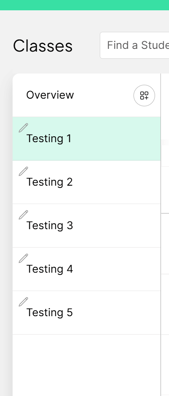
- Log in to your Thinking Nation teacher account and select the class period you will be providing feedback for.
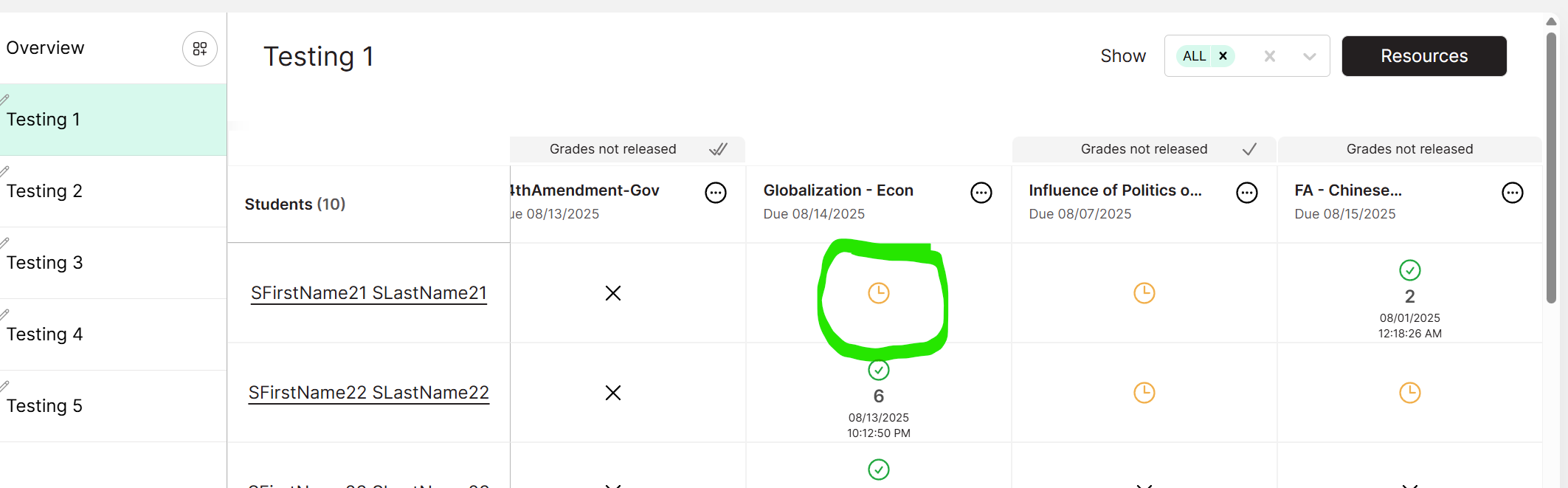
- Locate the assignment you are working on, and click on the "Assignment in Progress" icon next to the student you want to leave feedback for.
- This will open the student's CRP with their current work. When you highlight a section, a comment box will appear.

- Leave your comment and click the "Save" button. The text will be left
highlighted in pink and the student will be notified that you have left a comment on their assignment.

- The comment will appear in the "Chat" section on both the teacher's portal and the student's:
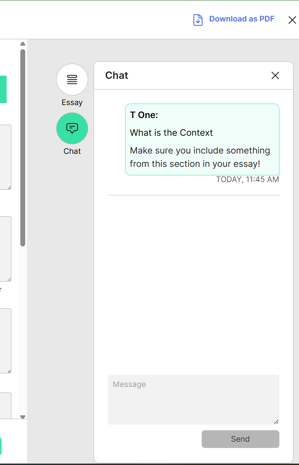
- Here you can see all of the questions or comments that students have left as well, and you can provide feedback through replies.
Tip: We have many step-by-step video guides to help you navigate through this and other features on the Thinking Nation platform.