
Note: Please make sure you are logged on to your Thinking Nation teacher portal to access this feature.
To assign a Curated Research Paper (CRP) to your students, please follow the instructions below:
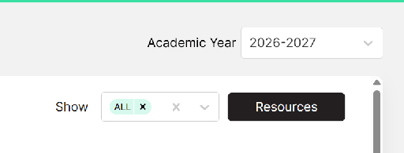
1. Navigate to any class period and click on the black "Resources" button:
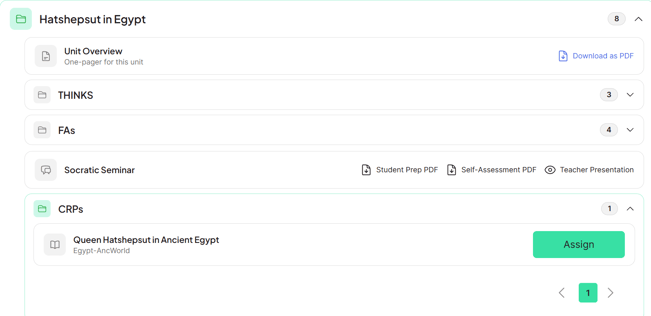
2. Browse the available resources and select the CRP you would like to assign to your class(es).Click the green button on your screen that says "Assign":
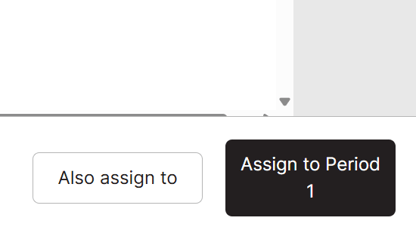
3. You can preview all pages in the CRP before assigning it to your students. Click the "Assign to [Class Name]" button to open the assignment configurations:
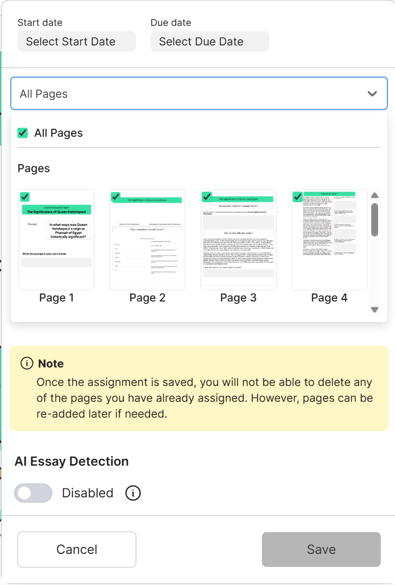
4. Here you will set the Start and Due dates for the CRP. You will also select the pages you want to assign to your student. Lastly, you can choose whether or not to toggle on the AI Essay Detection. Once all of your assignment configurations are set, click "Save"
Please be aware that once your CRP has been assigned, you can add pages at your own pace, but you cannot take them away.
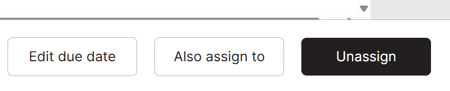
5. Once assigned, you can Edit the assignment configurations, Assign to other class periods, or Unassign the CRP altogether.
Note: Assigned resources will not be visible on student platforms until the Start Date.