
Remember: You need to be logged in to your Thinking Nation Teacher Account to be able to access this information.
1. Click on the "Reports" tab at the top of your teacher portal screen: 
2: The reports dashboard will open where you can choose what type of report to generate: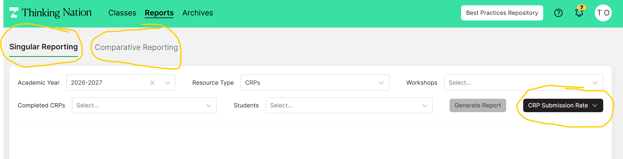
- Singular Reporting: allows teachers to compare the performance of students from different classes/workshops for the same resource. The teacher selects the workshops/classes and the resource they want to analyze, then generates the report. The report displays students from both workshops/classes in a single report and score table, making it easy to compare their performance.
- Comparative Reporting: allows teachers to compare student performance across two different resources within the same workshop/class. The teacher selects the workshop and the two resources they want to compare, then generates the report. The score table shows the performance for both resources using different colors, making it easy to identify and compare the results for each resource.
- CRP Submission Rate: You can see the CRPs you have assigned across your class periods, and how many have been submitted.
Note: these reports an only be generated once students have submitted CRPs or Formative Assessments for grading.